
Rongta Bluetooth Shipping Label Printer
4.0Editor score
Mac OS 10.11 and newer support
Automatic label identification feature
Compact portable design for desk use
This guide compares the top label printers for Mac users, focusing on connectivity, print quality, and platform compatibility for small business shipping needs.
Finding the right label printer for Mac can streamline your shipping workflow significantly. Modern thermal printers offer fast, ink-free printing that integrates smoothly with macOS systems. Whether you run an online store or manage office logistics, a reliable printer saves time and reduces errors in your daily operations.
We evaluated ten top-rated thermal label printers based on their Mac compatibility, connection options, and print performance. Our analysis covers Bluetooth and USB connectivity, driver support, and software features tailored for macOS users. Each model was reviewed for its ability to handle standard shipping labels and integrate with popular e-commerce platforms efficiently.
Each pick below highlights specific strengths like speed, ease of setup, or app functionality. We focus on real-world usability for Mac owners without repeating technical jargon. Prices and availability change frequently, so verify current details before purchasing. This guide aims to help you choose the best device for your specific labeling requirements today.
4.0Editor score

4.4Editor score

4.4Editor score
This side-by-side comparison outlines the core specifications and strengths of each thermal label printer suitable for Mac environments. We highlight connectivity methods, resolution, and platform support to help you differentiate between models quickly. Use this table to find the device that aligns best with your workflow and budget constraints.




The JADENS Bluetooth Thermal Shipping Label Printer stands out for Mac users needing reliable 4×6 shipping labels. It holds a 4.4 rating and uses a Japanese high tech thermal print head for crisp output. This model supports both fanfold and roll labels with widths from 1.57 to 4.1 inches.
We may earn a commission when you buy through this link, at no additional cost to you.
Its dual connectivity options allow Bluetooth printing for Mac OS 10.9 and newer via the provided drivers. USB connection is also available for a steady workflow without wireless interference. The printer integrates with major platforms like ShipStation, Shopify, and Amazon to streamline your shipping process.
Trade-offs include the need to calibrate label size each time labels change by long pressing the feed button. Phone Bluetooth printing requires downloading the Jadens printer app since direct Bluetooth on mobile is limited. These steps ensure accuracy and are minor for the reliability offered.
This printer is ideal for small business owners on Mac who prioritize speed and ease of use. It reduces mess with no ink or toner while delivering high quality barcodes and text. Consider this model if you need a dependable solution for daily shipping tasks.
Mac OS 10.9 and newer devices connect easily via Bluetooth or USB for efficient labeling.
Works with Endicia, Dazzle, ShipStation, and others to automate your shipping workflow.
We may earn a commission when you buy through this link, at no additional cost to you.
The Rongta Bluetooth Shipping Label Printer offers an affordable entry point for Mac users seeking thermal labeling. With a 4.0 rating, it features automatic label identification to eliminate manual adjustments. The width range spans 0.98 to 4.37 inches covering most common shipping needs efficiently.
We may earn a commission when you buy through this link, at no additional cost to you.
Drivers are available on the Rongta official website for Mac OS 10.11 and newer to ensure smooth setup. Its compact dimensions of 10.2 x 7.4 x 5.3 inches make storage simple in drawers or on small desks. Bluetooth connectivity through the RongTA app enables flexible printing from phones or tablets.
While the rating is modest, the automatic detection feature significantly reduces setup errors for high volume tasks. Users may find the app dependency for mobile a minor hurdle compared to direct connections. The speed and portability compensate for these limitations in budget conscious scenarios.
Choose this printer if you need a cost effective solution with reliable auto detection for Mac. It suits small businesses looking to minimize upfront costs while maintaining decent print quality. Verify driver availability for your specific macOS version before purchasing to confirm compatibility.
The small design allows easy storage on crowded workspaces without sacrificing performance.
Supports standard 4×6 and smaller labels like 2×2 circular or 1×1 QR codes easily.
We may earn a commission when you buy through this link, at no additional cost to you.
This Thermal Shipping Label Printer delivers premium features like the FlashLabel Pro app for Mac users needing design flexibility. It holds a 4.4 rating and supports offline storage to avoid cloud download delays during busy shipping times. The 203 DPI resolution ensures sharp barcodes and text for professional results.
We may earn a commission when you buy through this link, at no additional cost to you.
Dual connectivity via Bluetooth or USB lets you choose between wireless convenience or stable direct connection. The app offers 1800 plus templates and 300 plus fonts for extensive customization options. Compatibility includes major carriers like USPS and FedEx alongside platforms like Shopify and Etsy for seamless workflows.
Trade-offs include the lack of color printing which is standard for thermal devices. App pairing is necessary for Bluetooth use but simplifies setup across devices. The durable matte finish protects against wear while the included labels help you start immediately.
Invest in this model if you value design tools and reliability for Mac based shipping operations. It reduces downtime during peak hours with fast speeds and intuitive setup. Check the latest app requirements to ensure full feature access on your macOS version.
Access thousands of customizable templates to match your brand or organization needs quickly.
Store designs locally to print without internet interruptions during critical shipping periods.
We may earn a commission when you buy through this link, at no additional cost to you.
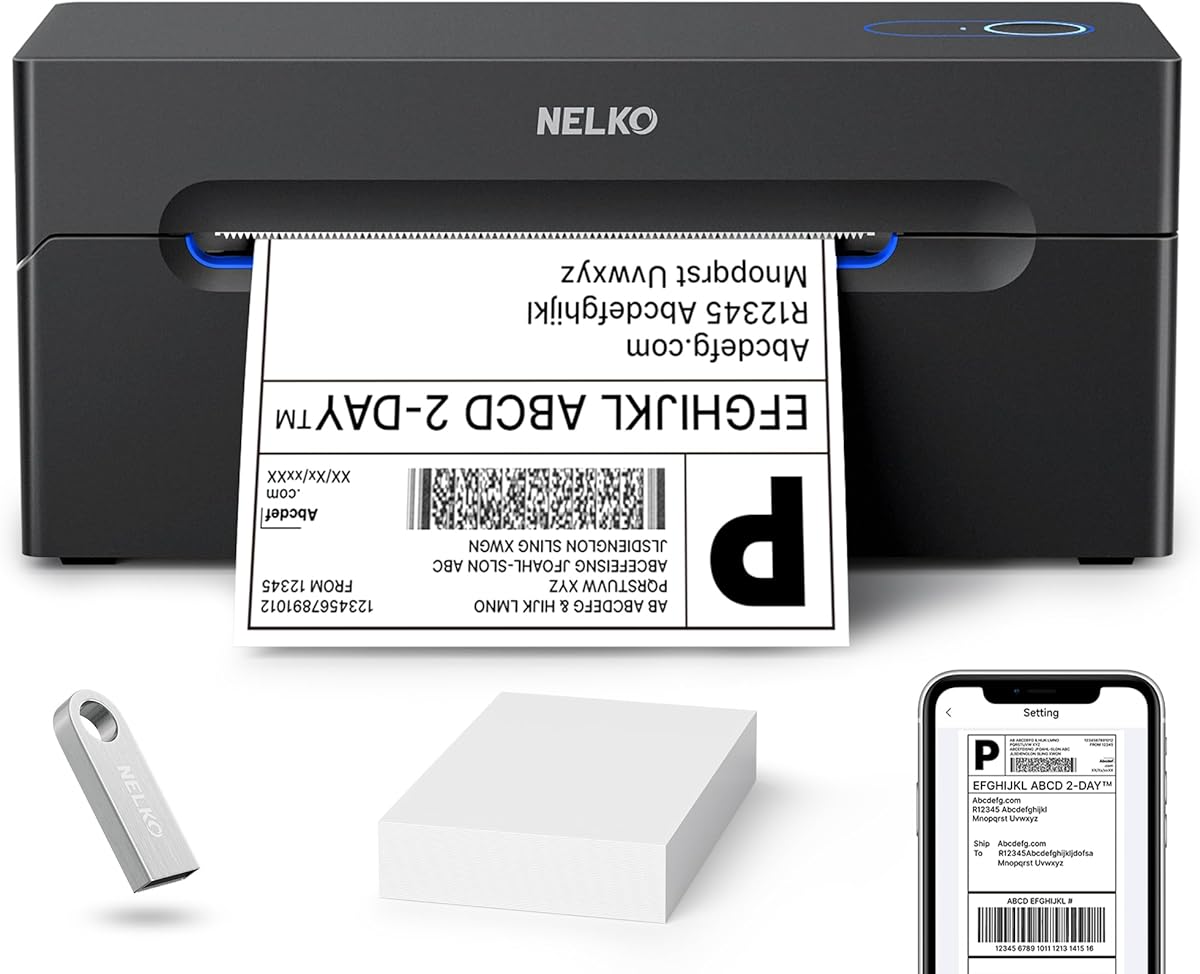
The Nelko Bluetooth Thermal Shipping Label Printer provides efficient 4×6 printing with strong platform support for Mac. Rated 4.3 it reaches speeds of 150 mm/s delivering up to 72 sheets per minute for high volume needs. The 203 DPI output ensures clear text and barcodes for professional packaging.
We may earn a commission when you buy through this link, at no additional cost to you.
Mac users connect via USB for stable printing since direct Bluetooth on Mac is limited to app use. The NELKO app allows design customization after saving logistics labels as PDFs. This workflow supports Amazon, eBay, Shopify and more making it versatile for diverse business types.
Saving labels as PDFs adds a step but ensures compatibility with the app editor. The compact design fits well in small spaces while reducing long term costs with no toner needs. Drivers and videos are included to assist setup without hassle.
This printer suits Mac users who need speed and platform versatility for daily shipping. It balances cost and performance well for small businesses. Confirm your OS version compatibility and app setup steps before integrating it into your workflow.
Print up to 72 labels per minute to keep up with fast order fulfillment demands.
Integrates with Amazon, Shopify, PayPal, and more for broad e-commerce support.
We may earn a commission when you buy through this link, at no additional cost to you.
The SUPVAN T50M Pro Bluetooth Label Maker Machine excels for smaller label needs with a 4.5 rating. It prints widths from 3/4 to 2 inches suitable for storage bins, product info or name tags. The free app requires no registration and offers auto label size recognition for easy use.
We may earn a commission when you buy through this link, at no additional cost to you.
While not for 4×6 shipping, it handles 30 plus fonts and 50 plus frames for creative designs. Image addition from phones or PCs enhances customization for branding or office supplies. The included tapes allow immediate use for home or small business organization tasks.
Its limitation to smaller widths means it complements rather than replaces full shipping printers. Users value the simplicity and cost savings from the free app features. Auto recognition reduces manual setup errors significantly for quick labeling sessions.
Choose this for Mac users focusing on inventory or home organization instead of shipping labels. It delivers high quality output for smaller formats efficiently. Verify app compatibility with your iOS or Android device for full Bluetooth functionality.
Perfect for organizing shelves, jars, and files with clear professional looking labels.
Access all editing features without registration fees or subscriptions for convenience.
We may earn a commission when you buy through this link, at no additional cost to you.
This Bluetooth Thermal Label Printer delivers 4×6 shipping performance with automatic calibration to prevent jams. It holds a 4.4 rating and uses BPA free direct thermal printing for clear crisp output without ink or toner. Mac users can connect via USB with driver software enclosed on the official website.
We may earn a commission when you buy through this link, at no additional cost to you.
The N40 printer reaches up to 150 mm/s printing speed supporting paper widths from 1 to 4.2 inches. It integrates with Amazon, eBay, Etsy, and TikTok for broad marketplace flexibility. The included 20 sheets of labels help you start testing immediately upon setup.
Trade-offs include manual calibration when changing labels to ensure proper alignment. Mobile printing requires the Nada Print app but Bluetooth connectivity is seamless once paired. The compact design fits well on desks without taking much space.
This model is ideal for Mac users needing a reliable wireless solution for shipping labels. It balances speed and ease of use for small business workflows. Check the official website for the latest drivers to ensure full macOS compatibility.
Automatic calibration and smart paper ejection reduce waste and keep printing smooth.
Seamlessly integrates with multiple platforms including TikTok and Pirate Ship for diverse needs.
We may earn a commission when you buy through this link, at no additional cost to you.
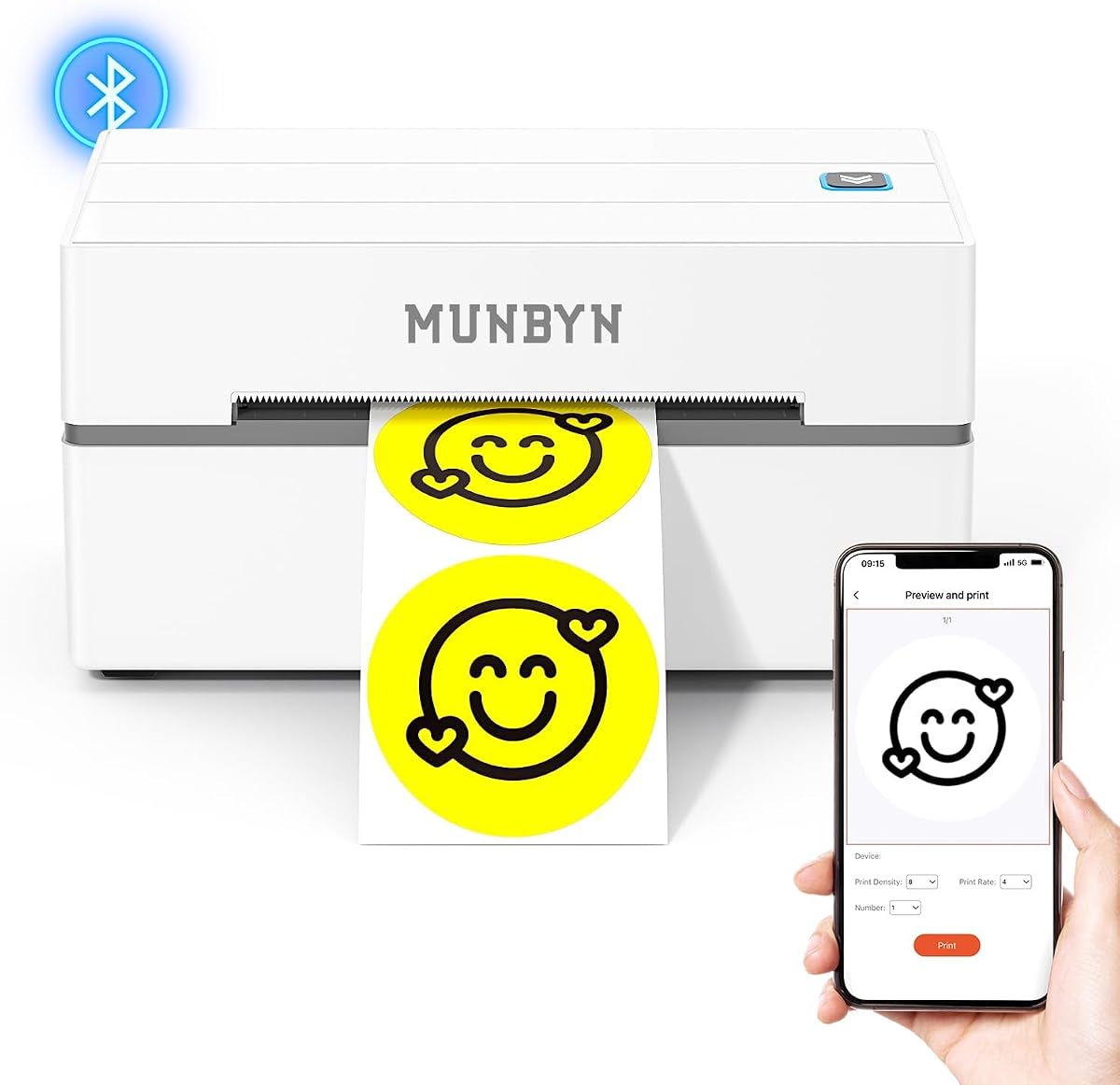
The MUNBYN Bluetooth Thermal Label Printer stands out for design customization with 3500 plus elements and 2000 plus templates. Rated 4.4 it prints at 203dpi precision ensuring crisp barcodes and text for shipping or branding. The Google Chrome Editor web tool works on Mac without installation needs.
We may earn a commission when you buy through this link, at no additional cost to you.
Mac users can connect via USB or Bluetooth depending on their setup preferences. The app supports multi-language options and OCR for text recognition improving versatility for international shipping. It integrates with major online and shipping platforms to simplify your workflow effectively.
Genuine Munbyn thermal label paper is recommended for optimal performance though it may not work with some third party brands. The 72 pages per minute speed keeps up with high volume demands. Trusted by many entrepreneurs it proves reliable for various business sizes.
Choose this printer if design flexibility and platform compatibility are priorities for Mac users. It offers robust tools for branding and shipping labels alike. Verify label compatibility to avoid print issues and ensure consistent results.
Access thousands of fonts and elements to create branded labels without external software.
Use the Chrome Editor on Mac for instant label design without downloading apps.
We may earn a commission when you buy through this link, at no additional cost to you.
This MUNBYN Bluetooth Thermal Label Printer Wireless provides identical high performance for Mac users needing design flexibility. Rated 4.4 it includes 80 plus fonts and access to 3500 plus elements via the Chrome Editor tool. The 203dpi precision ensures clear monochrome labels for branding or shipping tasks.
We may earn a commission when you buy through this link, at no additional cost to you.
Setup involves a simple three step process connecting designing and printing via Bluetooth or USB. iOS and Android users download the MUNBYN Print app while Mac desktop users can access the web editor. Compatible with major platforms it streamlines labeling for online businesses.
The similarity to other MUNBYN models means proven reliability but less variety in features. Users appreciate the multi-language support and import options for PDFs or text files. The compact design fits well in home offices or commercial settings alike.
Opt for this if you need a reliable printer with strong Mac support and design tools. It balances ease of use with professional output quality. Check the Chrome Editor compatibility with your browser for full functionality.
Use mobile apps or desktop web tools for flexible labeling across all your devices.
203dpi precision delivers crisp text and barcodes for professional packaging standards.
We may earn a commission when you buy through this link, at no additional cost to you.
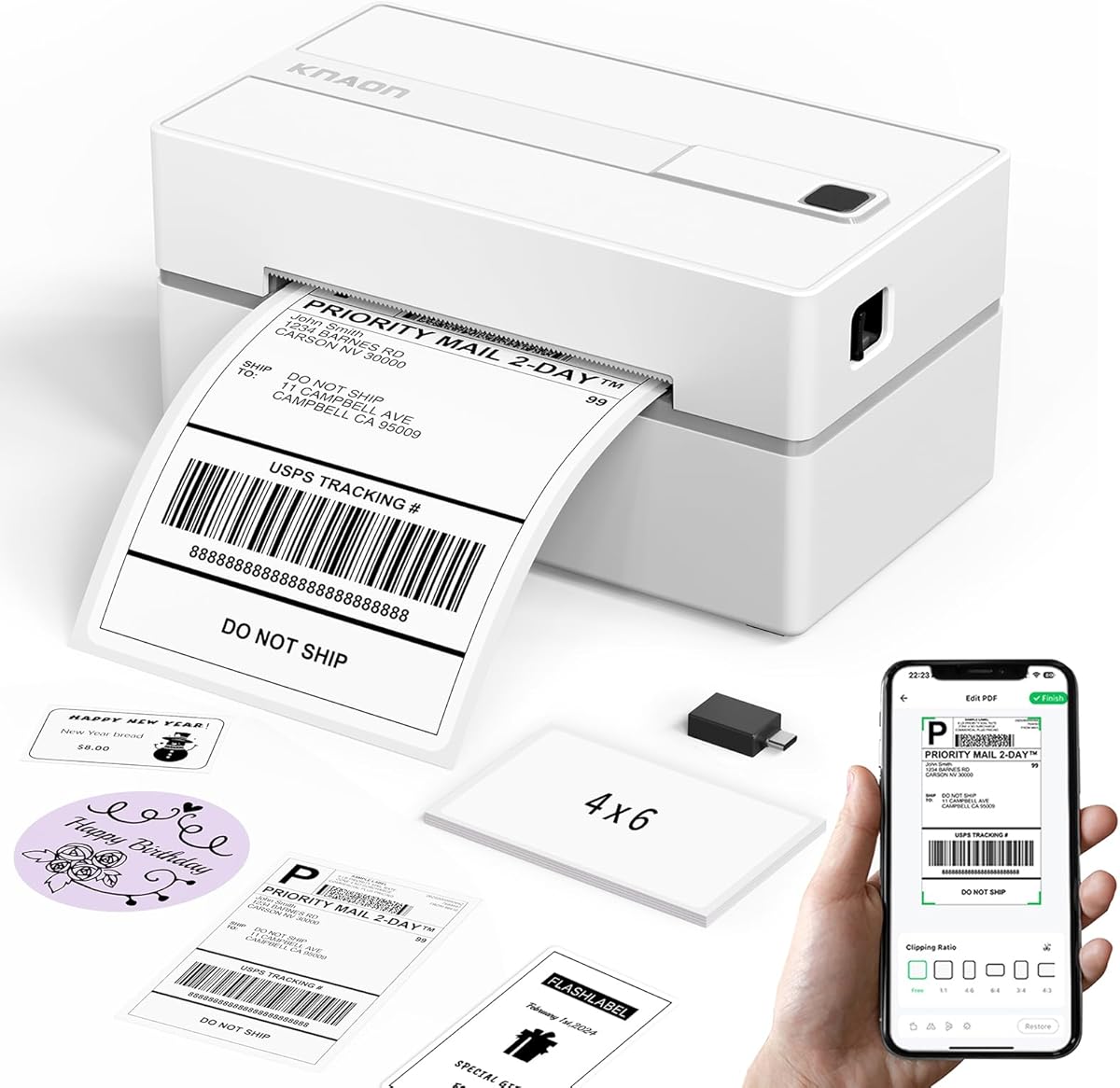
The KNAON Bluetooth Thermal Shipping Label Printer offers fast 180 mm/s printing in a compact portable design for Mac. Rated 4.4 it supports Mac and ChromeOS via USB drivers preloaded with tutorials for quick setup. The FlashLabel Pro app provides 3000 plus templates and 100 plus fonts for extensive customization.
We may earn a commission when you buy through this link, at no additional cost to you.
Mobile users download the app from the App Store or Google Play for wireless printing. For Mac, save logistics labels as PDFs on shipping platforms then import them to the app. This workflow ensures compatibility with Amazon, eBay, Shopify, and other major shipping providers.
The size of 7.17 x 3.9 x 3.43 inches makes storage easy in drawers or travel bags. The included 10 test papers help you verify alignment before full production runs. Speed and portability make it ideal for on-the-go shipping needs.
Choose this model if you need speed and portability with robust template options for Mac. It fits well for small businesses with variable workspaces. Confirm your macOS version supports the included drivers before purchasing.
Small dimensions allow easy storage and transport for flexible work environments.
At 180 mm/s it outpaces many competitors for faster label production during peak times.
We may earn a commission when you buy through this link, at no additional cost to you.
The MUNBYN Bluetooth Thermal Label Printer 130B emphasizes durability with a lifespan up to 970000 labels for long term value. Rated 4.3 it features DAC Dynamic Algorithm Tech that auto-calibrates to reduce label misalignment on Mac. The 0.1 mm font legibility ensures text remains crisp even on smaller labels.
We may earn a commission when you buy through this link, at no additional cost to you.
Operating at 60 dB it runs quieter than typing for focused environments like home offices or libraries. The Bluetooth indicator light illuminates only during data transfer showing stable connection. Near-zero jam rate maximizes productivity by minimizing interruptions during high volume printing.
While priced higher than others the reliability and quiet operation justify the cost for dedicated workflows. Mac users benefit from professional engineering and stable driver support. The design handles everything from shipping labels to inventory tags effectively.
Invest in this printer if you need long-term reliability and quiet operation for Mac setups. It suits high volume users who prioritize durability over initial cost. Verify your OS compatibility to ensure full feature access with the DAC chip.
Lasts six times longer than ordinary devices reducing replacement frequency and long-term costs.
60 dB noise level keeps workspaces calm and focused during daily printing tasks.
We may earn a commission when you buy through this link, at no additional cost to you.
Selecting the right label printer for Mac requires evaluating connectivity options software support and print quality. This guide outlines the key factors to consider for efficient and reliable printing.
Connectivity determines how you interface with your Mac. USB offers stable direct connection ideal for office environments where wireless interference is a concern. Bluetooth provides flexibility for mobile devices but often requires an app for setup. Check whether the printer supports your macOS version for drivers or web-based editors.
Prioritize dual connectivity if you switch between mobile and desktop workflows frequently.
Ensure the manufacturer provides drivers for your specific macOS version. Some printers require Chrome web tools or dedicated apps for printing functionality. Verify support for both Intel and Apple Silicon chips if you use newer Mac hardware. Official documentation should clarify setup steps clearly.
Look for clear macOS support notes before purchase to avoid setup issues.
Resolution affects barcode scanability and text clarity. 203 DPI is standard for shipping labels and sufficient for most business needs. Higher DPI offers sharper output but may not be necessary for simple addresses. Evaluate whether you need crisp text for branding or just functional shipping labels.
Choose 203 DPI or higher for professional readable shipping and return labels.
Check the width range supported by the printer. Standard 4×6 shipping labels require at least 4.1 inch capacity. If you need varied sizes like smaller barcodes or QR codes ensure the model handles widths below 2 inches. Fanfold and roll label compatibility adds flexibility.
Confirm support for 4×6 and smaller sizes to meet all labeling needs.
Integration with shipping platforms like Shopify Etsy or USPS streamlines label creation. Look for printers that work directly with these services through dedicated apps or workflows. Saving labels as PDFs and importing them to the app is a common method. Verify the supported platforms match your workflow.
Ensure the printer supports your primary e-commerce and shipping platforms.
Printing speed impacts throughput during peak hours. Models offering 150 mm/s or higher reduce wait times significantly. Consider page rates like 72 labels per minute for high volume shipping. Faster speeds help maintain order processing efficiency without unnecessary delays.
Select a speed that matches your daily order volume to avoid bottlenecks.
Software features like templates fonts and editing tools enhance customization. Some apps offer offline capabilities to avoid cloud dependency. Evaluate whether the app is free or requires subscriptions. Auto calibration features reduce setup errors when changing label types.
Prioritize apps with useful editing tools and minimal setup complexity.
A durable build ensures longevity in busy environments. Look for features like printhead overheat protection or reinforced coatings. Warranty terms and customer support options matter for troubleshooting. Read reviews on jam rates and maintenance requirements to gauge long-term reliability.
Check warranty coverage and support responsiveness before finalizing your purchase.
Begin by installing the necessary drivers or app for your macOS version. Download any required software from the manufacturer's official website. Connect the printer via USB or Bluetooth following the included setup guide. Calibrate the label size by pressing the feed button as instructed.
Use the associated app or web editor to design your labels. Import PDFs from your shipping platform or create new designs using templates. Select the correct label size settings to avoid misalignment before printing a test sheet. Adjust settings as needed for clear output.
Maintain the printer by keeping it clean and dust-free. Avoid direct sunlight on the thermal head to preserve print quality. Replace labels regularly when running low to prevent jams. For USB connection secure the cable firmly to avoid disconnection during printing.
Yes many Bluetooth label printers work with Mac but often require a dedicated app or driver setup. Some models allow direct Bluetooth connection while others need USB for desktop printing. Check the product details for macOS version support before buying to ensure compatibility.
Most thermal printers require an app or driver for full functionality on Mac. Some use web-based editors in Chrome while others offer dedicated apps. Ensure the manufacturer provides software compatible with your macOS version for smooth setup and printing.
Standard shipping labels are typically 4×6 inches so choose a printer that supports that size. Some models handle wider or narrower labels for barcodes and returns. Verify the label width range matches your typical shipping requirements before purchasing.
Connect via USB cable for a stable link or Bluetooth for wireless flexibility. Install any required drivers or download the companion app from the app store. Follow the calibration steps after connecting to ensure proper label feeding and alignment.
Yes many listed printers integrate with Shopify and Etsy through dedicated apps or PDF imports. Save labels as PDFs from these platforms then upload to the printer app for printing. Verify platform support in the product details before buying.
Thermal printing is ideal for Mac users as it requires no ink or toner reducing costs. It offers fast reliable output suitable for high volume shipping. Ensure the printer supports your macOS version for drivers to access full thermal features.
Thermal labels typically last months to years if kept away from heat and sunlight. Exposure to direct sun or heat sources can cause fading over time. Store labels in a cool dry place to preserve print clarity for your Mac shipments.
Many newer models support both Intel and Apple Silicon Macs via USB or app drivers. Verify macOS version compatibility in the product details as some require 10.9 or higher. Check for universal or ARM-compatible drivers to confirm compatibility with M1 or M2 chips.
We highlighted ten top-rated label printers suited for Mac users with diverse needs from shipping to organization. Each model offers unique strengths such as connectivity options design tools or long-term reliability. Choose based on your workflow speed and budget to maximize efficiency.
Prioritize Mac compatibility and platform integration to avoid workflow interruptions. Consider how often you print and the label sizes you need. Balancing cost with features ensures you select a device that grows with your business.
Always check current availability and prices as details can change. Verify driver updates for your macOS version before purchasing. This guide aims to simplify your decision with trusted insights and comparisons.