
Anker Laptop Docking Station Dual Monitor
4.5Editor score
8-in-1 USB-C Hub
Dual 4K HDMI output
Up to 85W charging
Compare the top docking station for Dell Laptop options including Anker and Dell models for display connectivity and power delivery needs.
Finding the right docking station for Dell Laptop users requires understanding connectivity needs and power requirements. A good dock expands your workspace by adding multiple video outputs and USB ports. This guide helps you select the perfect match for your specific workflow demands.
We compared ten top-rated docking solutions based on port variety and compatibility with Dell systems. Our analysis focuses on real-world performance and build quality to ensure reliable daily use. Each product offers unique advantages for different budget levels and setup configurations.
Every pick highlights key specifications and practical benefits for potential buyers to consider. Prices may change so always verify current offers before making your final purchase decision. This comprehensive overview streamlines your search for the ideal docking companion.
4.5Editor score

4.5Editor score

4.3Editor score
This side-by-side comparison highlights the key specifications of each dock to help you decide quickly based on your specific needs.




The Dell Pro Laptop Docking Station WD25 leads our list with powerful compatibility and modern manageability for professionals. It holds a 4.5 star rating and stands out for its ability to drive up to 100W of power to your laptop efficiently.
We may earn a commission when you buy through this link, at no additional cost to you.
Its thoughtful design includes an ambidextrous USB-C cable that can be routed left or right to suit your desk layout. The dock supports native four high-res displays making it ideal for multitasking environments where screen real estate is critical.
While it is a premium option the sustainable innovation aspects like reduced standby power and recycled materials justify the cost for eco-conscious buyers. The robust connector ensures long-term reliability even with frequent plugging and unplugging of devices.
This dock is perfect for Dell users seeking a future-proof solution that keeps accessories connected and charged while maintaining fast network speeds. If you need top-tier manageability and performance this is the top recommendation for your setup.
It drives up to 100W of power to new mainstream Dell AI PCs ensuring seamless performance.
Configure your workspace with an ambidextrous USB-C cable that can be routed left or right.
We may earn a commission when you buy through this link, at no additional cost to you.
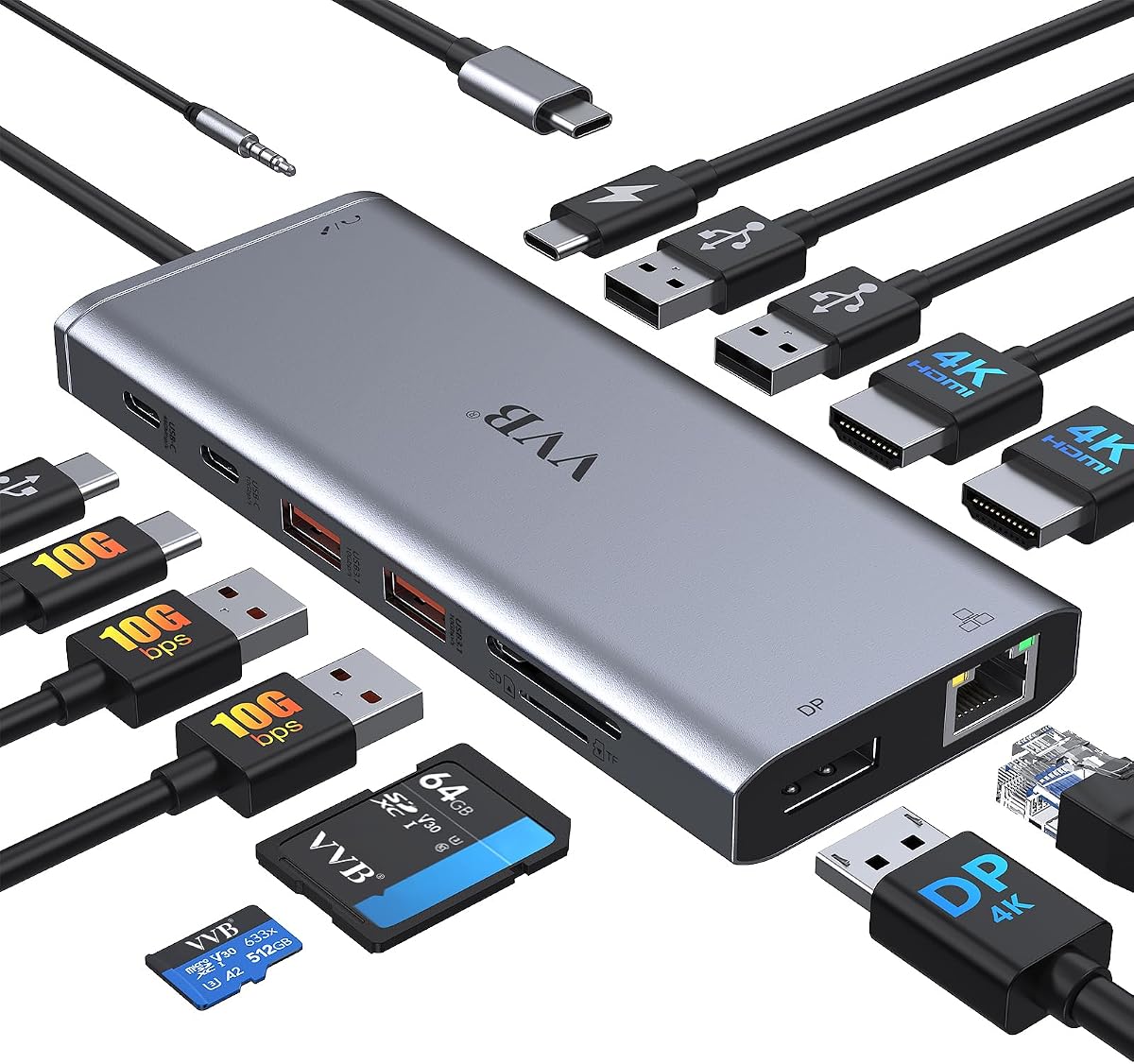
The Anker Laptop Docking Station Dual Monitor offers massive expansion capabilities that rival more expensive docks in our comparison. With a 4.5 star rating it delivers an incredible range of functions from HDMI to Ethernet and SD card reading.
We may earn a commission when you buy through this link, at no additional cost to you.
Its Dual HDMI Display feature allows you to stream or mirror content to a single device in stunning 4K@60Hz or hook up two displays in 4K@30Hz. This versatility is rare at this price point making it a strong value for home offices.
Power Delivery compatibility provides high-speed pass-through charging up to 85W which is sufficient for most Dell laptops during normal tasks. Just ensure you use a 100W PD wall charger and USB-C to C cable to unlock full potential.
Choose this if you want a reliable all-in-one solution without breaking the bank. It supports Windows 10 and 11 well and includes a worry-free warranty and friendly customer service for peace of mind.
Stream or mirror content to a single device in stunning 4K@60Hz resolution.
Includes Ethernet port and microSD/SD card reader for versatile data access.
We may earn a commission when you buy through this link, at no additional cost to you.
The Anker Prime Docking Station brings together all your devices with a 14-in-1 solution perfect for power users. Rated 4.3 stars it delivers a powerful 160W total output capable of charging up to four devices simultaneously.
We may earn a commission when you buy through this link, at no additional cost to you.
Its ultra-fast docking station design efficiently manages data across multiple devices with versatile ports offering speeds up to 10Gbps. You can enjoy crystal-clear streaming or mirroring across two displays at up to 2K@60Hz with compatible laptops.
While it lacks 5120*1440 monitor support it still provides robust display options for most workflows. The ability to charge multiple devices at once makes it a central hub for any complex desktop setup requiring high throughput.
This is the choice for those who need maximum connectivity and power in one box. The friendly customer service team is ready to assist within 24 working hours if you need warranty support or setup guidance.
Deliver a powerful charge with 160W of total output to charge up to four devices.
Efficiently manage data across multiple devices with versatile ports up to 10Gbps.
We may earn a commission when you buy through this link, at no additional cost to you.
This USB C Docking Station Dual Monitor for HP Laptop offers extensive compatibility for users needing multiple screens. It features an 8-in-1 setup with dual HDMI ports and VGA support for up to four 1080P displays.
We may earn a commission when you buy through this link, at no additional cost to you.
The 100W USB C PD Charging Port supports up to 100W input and 87W safe output into your laptop to keep it running. This ensures your system stays powered while transferring data at 480Mbps via the three USB 2.0 ports.
Note that while it is versatile for many devices specific Dell Gaming laptops or older models might not support the video output. Always check your laptop specification for DP1.4 signal output before purchasing to ensure full functionality.
If you need a budget-friendly way to expand your display options this dock delivers reliable performance for home and office use. Just ensure you have a compatible power adapter to avoid system warnings during operation.
The dock supports up to 4K Dual/Triple Display videos with HDMI DP and VGA.
Supports up to 100W input and 87W safe output into your laptop efficiently.
We may earn a commission when you buy through this link, at no additional cost to you.
The Anker Nano Laptop Docking Station features a unique detachable 2-in-1 design for desk and travel use. With a 4.2 rating it replaces two devices by offering a desktop station and a portable hub that snaps off easily.
We may earn a commission when you buy through this link, at no additional cost to you.
It supports triple displays via two HDMI ports and one DisplayPort making it perfect for data analysts or content creators. The 100W laptop charging ensures your system stays powered even while running all connected peripherals smoothly.
The package includes a 140W power adapter to ensure stable performance under full load. You can move a 1GB video in under 2 minutes thanks to the 10Gbps USB C data port included in the setup.
Choose this if you want one station for both home office and mobile work needs. Set up in under 2 minutes with plug and play functionality and enjoy an 18-month warranty for reliability.
Features a detachable 6-in-1 portable hub that snaps off for on-the-go use.
One USB C Data port transfers files at 10Gbps under fast workflow.
We may earn a commission when you buy through this link, at no additional cost to you.
This USB C Laptop Docking Station offers a massive 14-in-1 extension for your laptop into multiple useful ports. Rated 4.3 stars it supports dual monitor and triple displays for Windows users to enhance multitasking capabilities.
We may earn a commission when you buy through this link, at no additional cost to you.
Equipped with USB C and 2 USB A 3.1 ports you can transfer files in seconds from your flash drives or hard disks. The Ethernet port provides a stable and reliable wired connection which is vital for uninterrupted work sessions.
The 100W power delivery input and 87W safe output ensure your laptop stays charged while connected. Just note that charging cable and adapter are not included so plan accordingly for your purchase.
Ideal for users with diverse peripheral needs this hub offers strong compatibility with many major brands. Verify your laptop supports Power Delivery before buying to ensure optimal performance with this adapter.
USB C port and 2 USB A 3.1 ports speed up to 10Gbps for fast files.
Compatible with Dell Latitude Inspiron Vostro XPS and more.
We may earn a commission when you buy through this link, at no additional cost to you.
The Dell WD19S 180W Docking Station is built for the future with optimized power for connections and workspace needs. Its 130W power delivery ensures high-performance laptops get enough juice even under heavy load conditions.
We may earn a commission when you buy through this link, at no additional cost to you.
While the rating is slightly lower at 3.8 stars it remains a robust choice for Dell systems needing reliable connectivity. Dual DisplayPort and HDMI options allow for versatile setups that support productivity efficiently.
The 180W adapter provides substantial power headroom which is beneficial for creative professionals or data processing tasks. It simplifies your setup by consolidating cables into a single USB-C connection for cleaner desks.
Choose this if you prioritize raw power and stability over modern design aesthetics. It is designed to optimize your workspace and power your connections reliably for years to come.
Built for the future with 130W power delivery for heavy workloads.
Optimize your workspace with dual displayport and HDMI outputs.
We may earn a commission when you buy through this link, at no additional cost to you.
This Anker Laptop Docking Station turns your laptop into a desktop workstation with 13 ports for everything you need. Rated 4.0 stars it supports up to three external monitors at 1080p@60Hz for expanded multitasking power.
We may earn a commission when you buy through this link, at no additional cost to you.
Charge your laptop at 85W and your phone at 18W simultaneously using the included 135W power adapter. Files transfer at 10Gbps through USB-C and read SD cards at 104 MB/s for a power-user workflow.
The compact vertical design saves desk space and keeps your setup tidy. It works with Full-Functional USB-C and Thunderbolt 3/4 connections ensuring broad compatibility across modern devices.
Pick this if you need a reliable triple monitor setup for Windows. The 18-month warranty and trusted brand reputation provide confidence in your daily productivity tools.
Turn your laptop into a desktop workstation with 13 ports all in one.
Transfer files at 10Gbps through USB-C for fast workflow.
We may earn a commission when you buy through this link, at no additional cost to you.
The Dell WD19 130W Docking Station is built specifically for Dell laptops offering 90W power delivery for efficient charging. Rated 4.0 stars it includes two DisplayPort 1.4 outputs and one HDMI 2.0B port for visual needs.
We may earn a commission when you buy through this link, at no additional cost to you.
With a 130 watt AC adapter it ensures your laptop stays powered during intensive sessions. The Gigabit Ethernet RJ45 provides a stable connection while USB-A ports with PowerShare allow charging devices when laptop is off.
Its dimensions fit standard desks well and it includes audio out and combo audio ports for headsets. Check description for important compatibility information to ensure it matches your specific Dell model.
Choose this for a stable Dell-centric dock that prioritizes functionality. It is a reliable choice for users who want a dedicated solution from the original hardware manufacturer.
Designed for Dell laptops with 90W power delivery and USB-C.
Includes 2x DisplayPort 1.4 and 1x HDMI 2.0B for multiple screens.
We may earn a commission when you buy through this link, at no additional cost to you.
This renewed WD19 Dell Docking Station Dual Monitor offers a cost-effective way to get high-power connectivity. Rated 4.1 stars it includes an 180W adapter and simplifies your setup with broad compatibility across Dell laptops.
We may earn a commission when you buy through this link, at no additional cost to you.
Effortlessly connect your peripherals monitors and devices with this USB-C dock supporting DisplayPort or Thunderbolt 3. It works with select models from Inspiron Venue Precision XPS and Latitude series for wide utility.
Verify compatibility prior to purchase and try updating dock firmware if you run into issues. The renewed condition allows you to save money while still enjoying the benefits of a proven design.
Pick this if you want a Dell-specific dock at a reduced price. Ensure your computer is USB-C or Thunderbolt compatible before buying to avoid connection issues.
Cost-effective way to get high-power connectivity and broad compatibility.
Includes 180W adapter and USB-C cables for easy setup.
We may earn a commission when you buy through this link, at no additional cost to you.
Selecting the right dock involves understanding your power needs and port requirements. Use these factors to narrow your choices effectively.
Check your laptops power requirements and ensure the dock can provide sufficient wattage. Most Dell models require at least 65W while high-performance machines may need 100W or more. Insufficient power can lead to slow charging or performance throttling under load.
Choose a dock that meets or exceeds your laptops maximum power draw to keep it running smoothly.
Count the number of external monitors you need and verify resolution support. Some docks offer dual 4K outputs while others support triple 1080p displays. Ensure your laptop supports DP Alt Mode or Thunderbolt to utilize these video ports effectively.
Prioritize docks that match your screen count and resolution needs for a clutter-free workspace.
Look for a variety of USB-A and USB-C ports based on your peripherals. High-speed data transfer requires USB 3.1 Gen 2 or Thunderbolt connections. Ensure there are enough slots for drives keyboards mice and audio devices.
Select a dock with enough fast data ports to avoid bottlenecks during file transfers.
A built-in Ethernet port provides a stable and reliable wired connection for your network. Gigabit Ethernet ensures fast internet speeds without relying on Wi-Fi interference. This is essential for VoIP calls or large cloud data syncs.
Choose a dock with Ethernet to maintain consistent network performance while working.
Native Dell docks often offer better stability for Dell laptops compared to generic hubs. However third-party brands like Anker provide cost-effective alternatives with strong performance. Always check compatibility lists before purchasing to avoid issues.
Ensure the dock explicitly supports your specific Dell model for best results.
Durability matters for daily plugging and unplugging of cables. Look for robust connectors and heat dissipation features in the casing. Vertical designs save desk space while horizontal layouts may be more stable.
Pick a dock with a sturdy build to withstand regular office or home use.
Docks can generate heat when charging and transferring data simultaneously. Ensure the unit has adequate cooling vents to prevent overheating. Overheating may lead to throttling or unstable connections during long sessions.
Select a model with good thermal design to maintain performance under heavy load.
Check the warranty period and availability of customer support for troubleshooting. Brands offering 18-month warranties show confidence in their product reliability. Prompt support helps resolve connectivity or power issues quickly.
Prioritize brands with solid warranty policies to protect your investment.
Start by connecting the power adapter to the dock and then connect your monitor and peripheral devices before attaching the laptop. This ensures stable power delivery and prevents potential short-circuits when you plug in the main cable.
Regularly inspect the ports and cables for dust or debris to maintain optimal conductivity. A soft brush or compressed air can help keep connectors clean and free from buildup that might interfere with data transfer.
Avoid moving the dock while connected to your laptop to prevent stress on the USB-C connector. If you need to relocate it unplug the laptop first to preserve the integrity of both the dock and your machine.
Not all Dell laptops support docking stations via USB-C. You need a USB-C port that supports DisplayPort Alternate Mode or Thunderbolt to send video signals. Check your specific model specs to ensure compatibility before purchasing.
Yes you can use a generic USB-C dock with many Dell laptops that support DP Alt Mode. However Dell branded docks may offer better power delivery and stability. Always verify power requirements to match your laptop needs.
Thunderbolt docks offer higher bandwidth and faster data transfer speeds compared to standard USB-C docks. They support more displays and higher resolutions efficiently. Check if your laptop has a Thunderbolt port for full benefits.
A docking station will not damage your Dell laptop battery if it uses proper Power Delivery protocols. Modern docks adjust voltage and current to match laptop requirements safely. Avoid using adapters that do not meet your power specs.
You need a 100W dock if your laptop charger is 100W or higher for optimal performance. If your charger is 65W a 65W dock may suffice. Check your power adapter label to determine exact wattage needs.
Monitor flickering usually happens due to incompatible resolutions or cable issues. Ensure you use high-quality HDMI or DisplayPort cables. Adjust display settings to match supported resolutions for stability.
We reviewed ten top docking solutions ranging from the Dell Pro WD25 to budget-friendly Anker options. Each provides unique benefits for different users whether you need four displays or just a few extra ports.
Prioritize power delivery and port count based on your daily workflow to get the most out of your setup. Choosing the right dock saves time and keeps your workspace organized and efficient throughout the day.
Remember that prices can fluctuate so check current listings before finalizing your purchase. Investing in the correct dock now ensures your Dell laptop performs at its best for years to come.